🧪 DHCP Lab
📌 Objective
Understand how DHCP works in real network environment and how to debug common failure scenarios using a structured top-to-bottom approach.
⚙️ Environment
- Virtualization: VirtualBox
- OS: Ubuntu Server (1 DHCP Server VM & 2 Client VMs)
- Network mode: Internal Network + NAT (enp0s3 ignored for DHCP lab)
🛠️ Network Setup
Interfaces
DHCP Server
- enp0s8 -> 192.168.10.10/24 (Lab network)
- enp0s3 -> NAT
Clients
- enp0s8 -> DHCP assigned IPs
- enp0s3 -> NAT (not used)
⚙️ Network Configuration (Netplan)
Both server and clients are configured using Netplan, which defines interface behavior before DHCP starts.
🖥️ Client VM Netplan
sudo nano /etc/netplan/01-netcfg.yaml
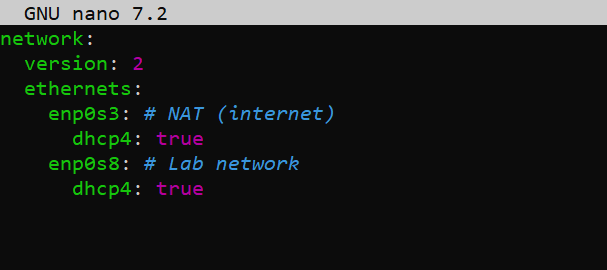
Meaning:
- enp0s3 -> NAT IP automatically assigned
- enp0s8 -> requests IP from DHCP server
🖥️ DHCP Server VM Netplan
sudo nano /etc/netplan/01-netcfg.yaml
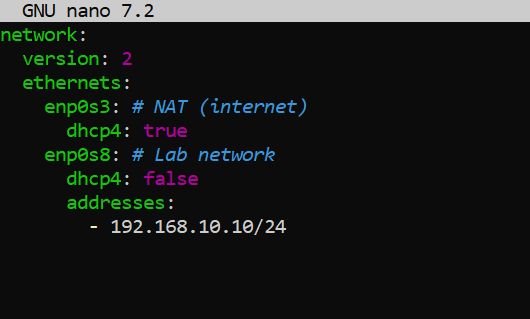
Meaning:
- enp0s8 is STATIC (required for DHCP sever stability)
- enp0s3 remains NAT
- DHCP server must always have fixed IP in lab network
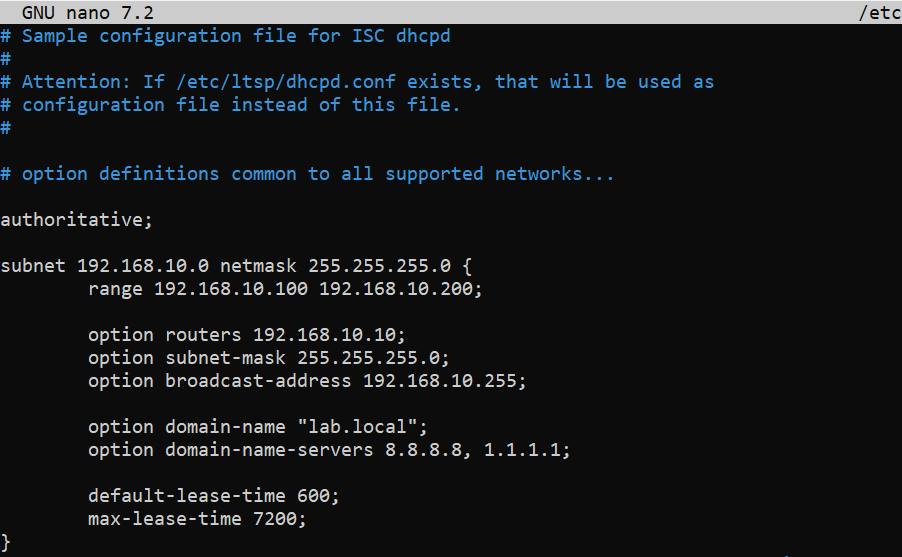
⚙️ DHCP Server Configuration
sudo nano /etc/dhcp/dhcpd.conf
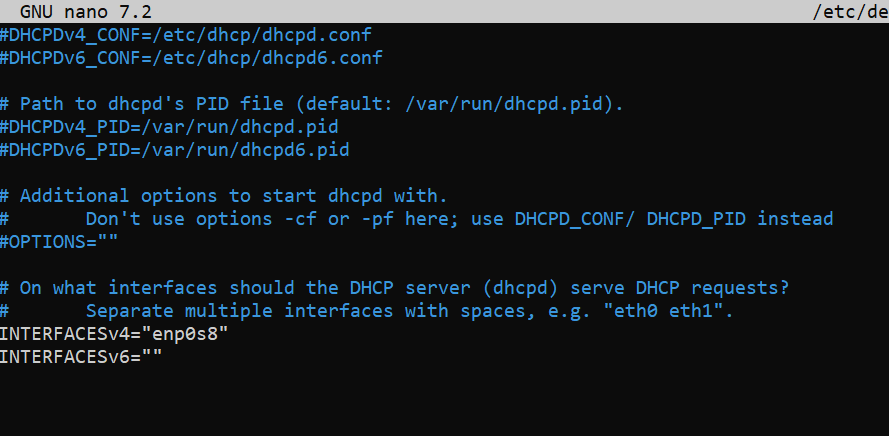
⚙️ DHCP Server Interface Binding
Before DHCP can operate, it must bind to the correct interface:
sudo nano /etc/default/isc-dhcp-server
✅ Validation Flow
Step 1 - Start DHCP Service
sudo systemctl start isc-dhcp-server
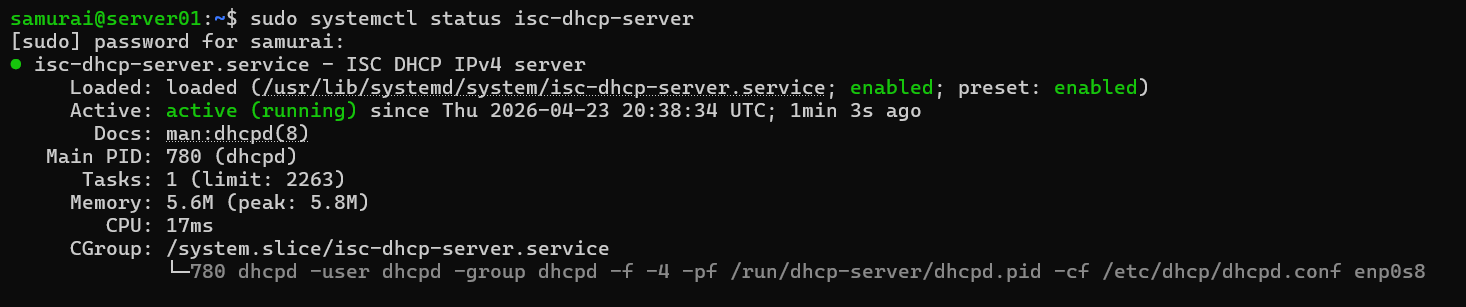
Check status:
sudo systemctl status isc-dhcp-server
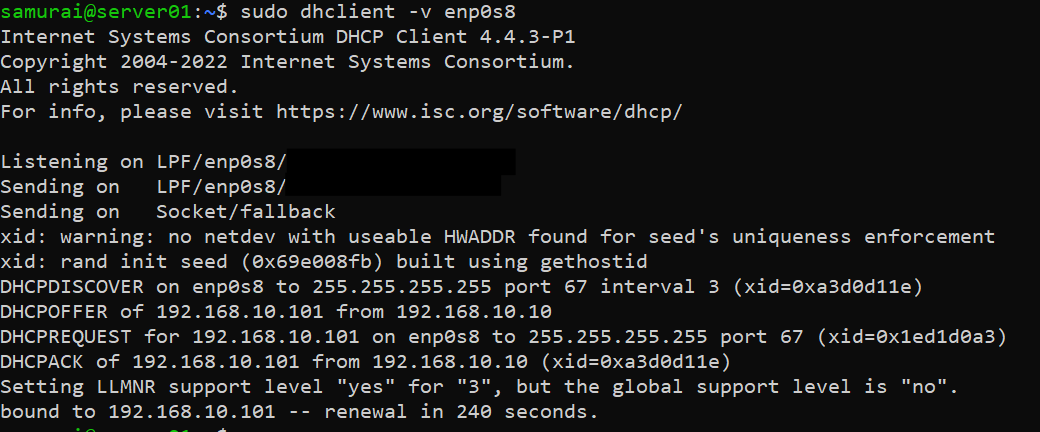
Step 2 - Request IP
sudo dhclient -v enp0s8
Verify IP assignment:
ip a show enp0s8

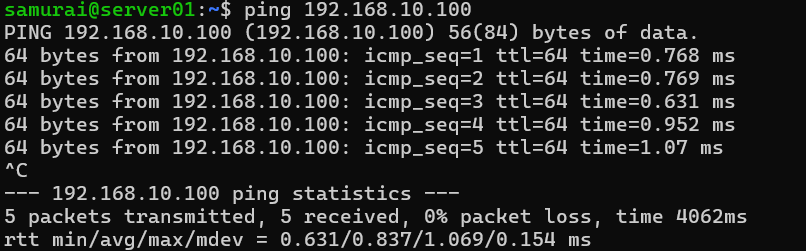
Step 3 - Connectivity test
ping 192.168.10.100
🧪 Challenge 1 - DHCP Service Fails to Start (Wrong Interface Binding)
Edit config to create a subnet mismatch:
sudo nano /etc/default/isc-dhcp-server

INTERFACEv4="enp0s3"
Expected outcome:
- DHCP service fails to start
- Client stuck in DHCPDISCOVER
- No IP assignment
🔥 Debugging
Step 1 - Check service:
systemctl status isc-dhcp-server
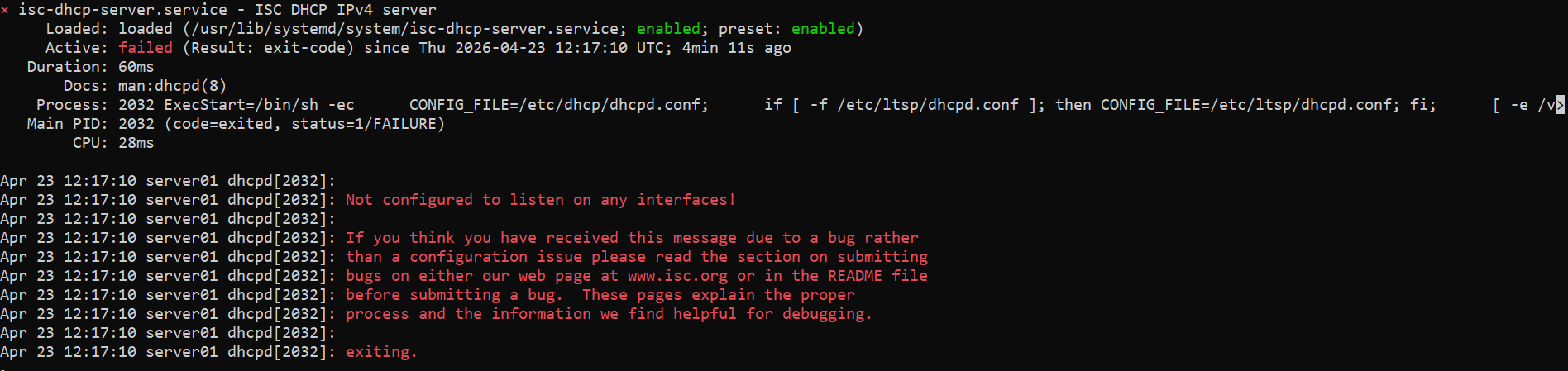
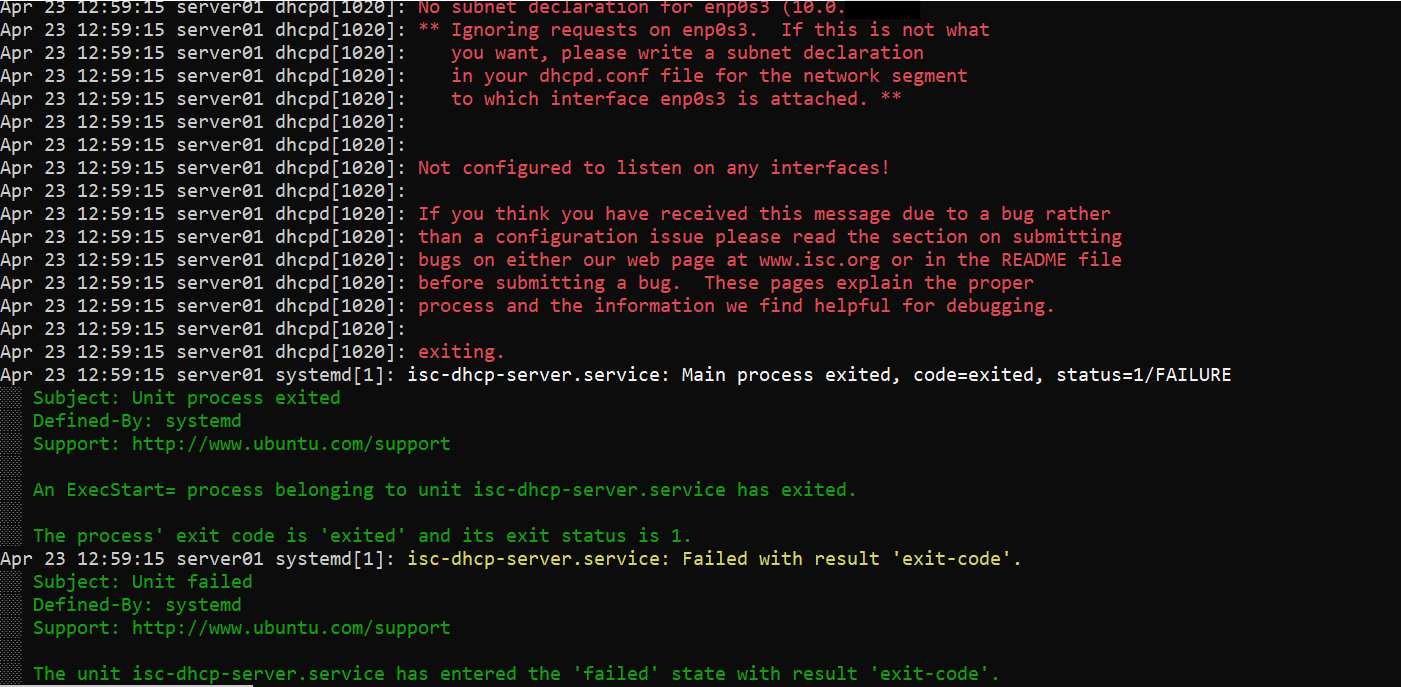
Step 2 - Check logs:
sudo journalctl -u isc-dhcp-server
Error: No subnet declaration for enp0s3 (10.0.2.15)
🧠 Root Cause
- DHCP is bound to enp0s3 (NAT)
- No matching subnet config exists for that interface
- Service cannot start
✅ Remediation
Bind DHCP to correct interface:
sudo nano /etc/default/isc-dhcp-server

INTERFACEv4="enp0s8"
Restart the DHCP service:
sudo systemctl restart isc-dhcp-server
🧪 Challenge 2 - Pool Exhaustion
Edit dhcpd.conf to reduce the pool to a single IP:
sudo nano /etc/dhcp/dhcpd.conf

subnet 192.168.10.0 netmask 255.255.255.0 {
  range 192.168.10.100 192.168.10.100;
}
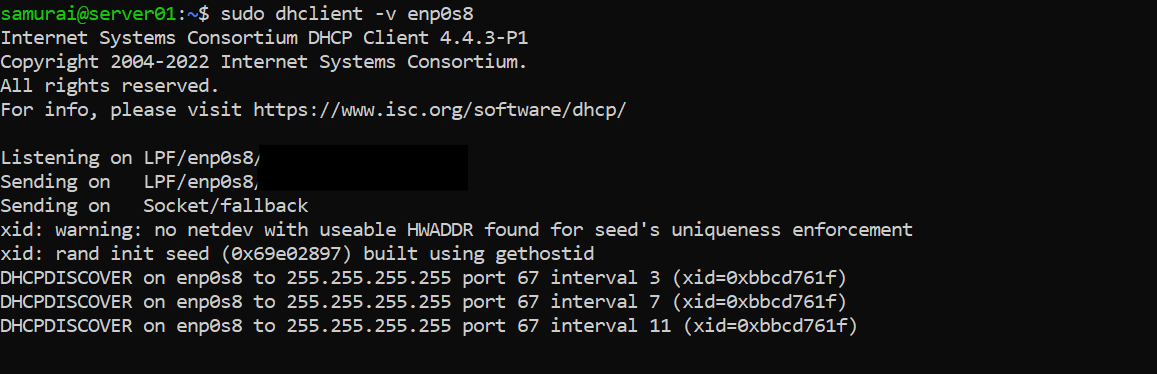
Expected outcome:
- Client A -> gets IP
- Client B -> stuck in DHCPDICOVER
🔥 Debugging
Step 1 - Check service
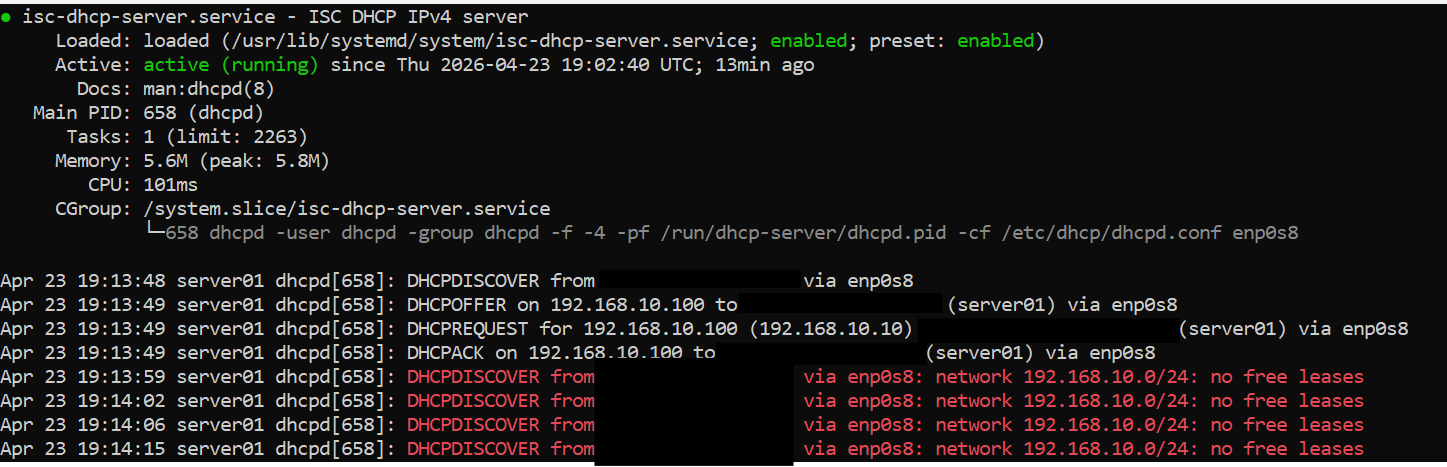
systemctl status isc-dhcp-server
Interpretation
- DHCP Service is running ✅
- DHCP is receiving requests ✅
- DHCP is refusing allocation ❗
Step 2 - Check logs
sudo journlctl -u isc-dhcp-server
Result:
- repeated no free leases

Step 3 - Check lease file
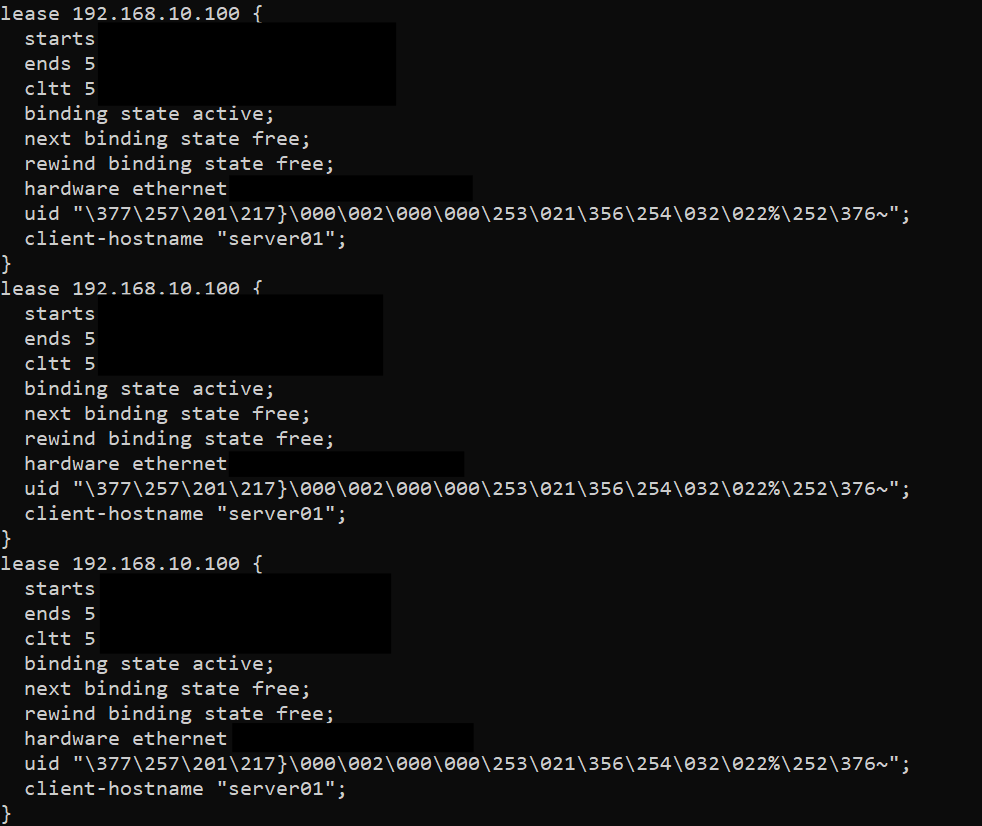
cat /var/lib/dhcp/dhcpd.leases
Result:
- pool fully assigned
- single active lease
🧠 Root Cause
- Pool size = 1
- Lease already assigned
- No available IPs
DHCP is functioning correctly, but the IP pool is exhausted.
✅ Remediation
Expand pool:
sudo nano /etc/dhcp/dhcpd.conf

range 192.168.10.100 192.168.10.200;
Restart the service:
sudo systemctl restart isc-dhcp-server

🧠 Key lessons
- Interface binding is critical
- DHCP must match subnet to interface
- Logs reveal root cause quickly
🔥 Debugging hierarchy
- Check service
- Check logs
- Check traffic
- Check leases
- Validate client